Frequently Asked Question
How can I add an attachment to an email?
Last Updated 3 days ago
Go to Search -> Staff Search, here you will be able to select the members of staff you want to send an email to.
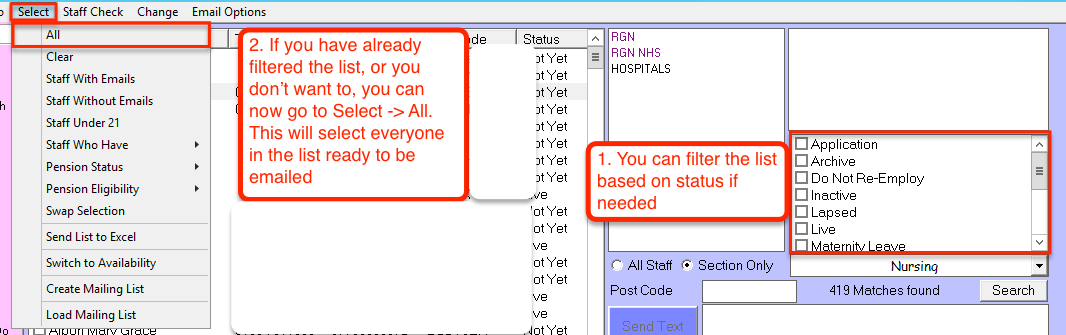
Type the email that you want to send in the Email box. When ready, you can click the Attachment button to browse your files for an attachment.
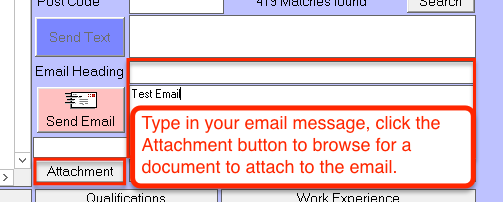
You can now browse for your attachment. Please note, the attachment must be located locally on your PC, you cannot attach a document that is saved on the Pulse servers. I recommend looking for C: or D: in the list of places as these will likely be the names of your drives.
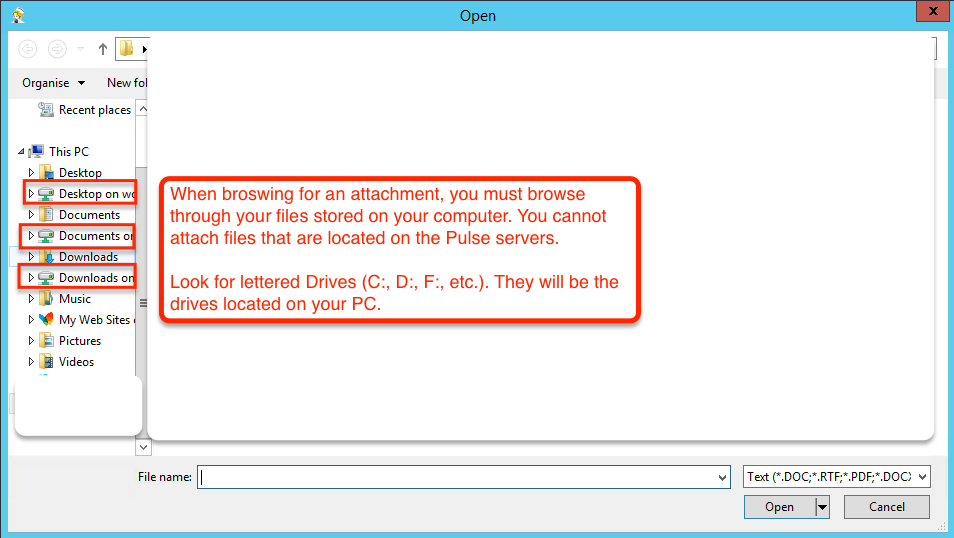
Find the file you want to use as an attachment, select it, then click the Open button.

The attachment is now on the email. If it is a PDF you may want to ensure that it isn’t full quality as the file size can get quite large and take quite long to send.

Type the email that you want to send in the Email box. When ready, you can click the Attachment button to browse your files for an attachment.
You can now browse for your attachment. Please note, the attachment must be located locally on your PC, you cannot attach a document that is saved on the Pulse servers. I recommend looking for C: or D: in the list of places as these will likely be the names of your drives.
Find the file you want to use as an attachment, select it, then click the Open button.
The attachment is now on the email. If it is a PDF you may want to ensure that it isn’t full quality as the file size can get quite large and take quite long to send.